> For the complete documentation index, see [llms.txt](https://help.craftsmanplus.com/llms.txt). Markdown versions of documentation pages are available by appending `.md` to page URLs; this page is available as [Markdown](https://help.craftsmanplus.com/play/properties/effects/color-underlay.md).
# Color Underlay
The **Color Underlay** effect fills a layer's bounds with a color, behind the source art. The art stays fully visible on top, and any transparent or semi-transparent areas of the layer reveal the underlay color.
Use Color Underlay to add a backing plate behind text, a panel behind an icon, or a solid background behind a cut-out image, without adding a second layer to hold it.
***
#### Adding a Color Underlay Effect
Add a Color Underlay effect from the **Effects** section of the layer's Properties Panel, the same way as any other effect. See [Effects](/play/properties/effects.md) for the full add, configure, and remove flow.
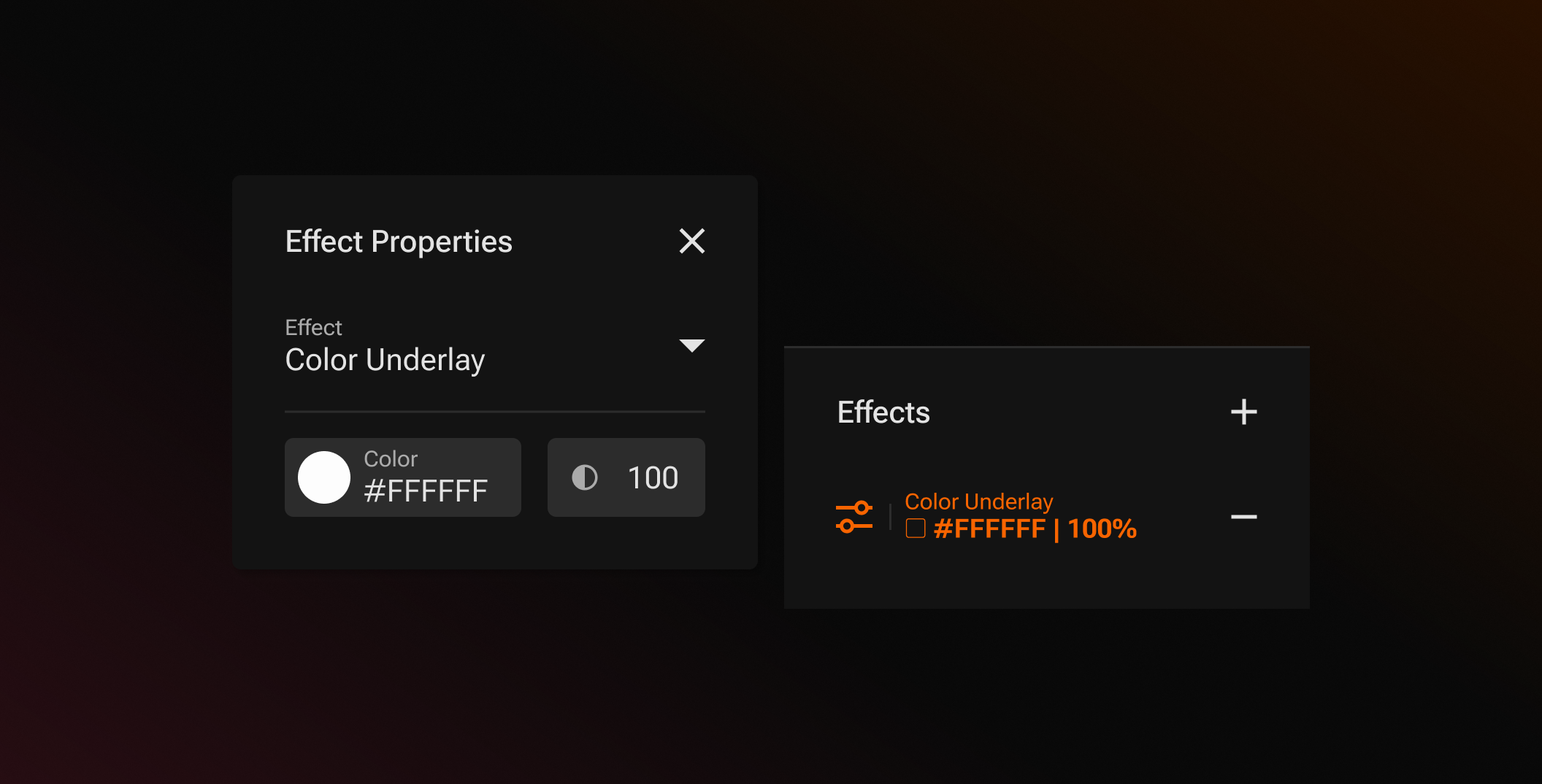
The Color Underlay effect has a single setting: a color input with a swatch, hex value, and opacity percentage. Click the swatch to open the color picker.
A new Color Underlay starts as **#FFFFFF at 100%**, a solid white plate behind the layer.
***
#### What the Underlay Covers
The underlay fills the layer's box, the same rectangle the selection handles show in the viewport, not just the visible pixels of the art.
* **Text layers.** The underlay fills the whole text box, even where the text doesn't reach the edges. Resize the text box to resize the plate.
* **Images with transparency.** Transparent areas of the image show the underlay color.
* **Fully opaque images.** The art covers the underlay completely, so the underlay is not visible.
{% hint style="info" %}
*The underlay is visual only. It does not make the layer's tappable area larger, so taps on the plate outside the art behave the same as before the effect was added.*
{% endhint %}
***
#### Solid Colors and Gradients
The color input accepts a solid color or a gradient. See [Color Selector](/play/general/color-selector.md) for how to build a gradient. Gradients are laid out across the layer's box, the same way they are on a shape layer.
***
#### How Opacity Controls the Underlay
* **At 100%**, the underlay is a solid plate behind the art.
* **Below 100%**, the underlay is translucent, and content beneath the layer shows through it.
* **At 0%**, the underlay has no visible effect.
***
#### Layer Types
Color Underlay works on images, text, shapes, sequences and videos.
***
#### How Color Underlay Combines
* **Opacity effect.** An Opacity effect on the same layer fades the art and the underlay together.
* **Press Effect.** When the layer is pressed, the Press Effect applies to the art and the underlay together.
* **Animations.** The underlay moves, scales and rotates with the layer through all of its animations, so the plate never separates from the art.
* **Color Overlay.** A layer can hold a [Color Overlay](/play/properties/effects/color-overlay.md) and a Color Underlay at the same time. The overlay recolors the art; the underlay sits behind it.
* **Blend Mode.** With a [Blend Mode](/play/properties/effects/blend-mode.md) effect on the same layer, the art and the underlay blend with what's beneath it together.
{% hint style="warning" %}
*A layer can hold one Color Underlay effect. To change the color, edit the existing effect instead of adding a second one.*
{% endhint %}
---
# Agent Instructions
This documentation is published with GitBook. GitBook is the documentation platform designed so that both humans and AI agents can read, navigate, and reason over technical content effectively. Learn more at gitbook.com.
## Querying This Documentation
If you need additional information that is not directly available in this page, you can query the documentation by asking a question.
Perform an HTTP GET request on the following URL with the `ask` and `goal` query parameters:
```
GET https://help.craftsmanplus.com/play/properties/effects/color-underlay.md?ask=&goal=
```
`ask` is the immediate question: it should be specific, self-contained, and written in natural language.
`goal` is what the user is ultimately trying to achieve, the reason they need the answer. Sharing it helps GitBook give you a better, more relevant answer. A goal is most helpful when it describes the outcome the user wants rather than restating the question. For example, with `ask=how do I create an API token`, a goal like `automate deployments from our CI pipeline` lets GitBook tailor the answer to that use case.
The response will contain a direct answer to the question and relevant excerpts and sources from the documentation.
Use this mechanism when the answer is not explicitly present in the current page, you need clarification or additional context, or you want to retrieve related documentation sections.