> For the complete documentation index, see [llms.txt](https://help.craftsmanplus.com/llms.txt). Markdown versions of documentation pages are available by appending `.md` to page URLs; this page is available as [Markdown](https://help.craftsmanplus.com/play/general/actions/start-next-scene.md).
# Start Next Scene
Move the playable to a scene you choose when an action fires.
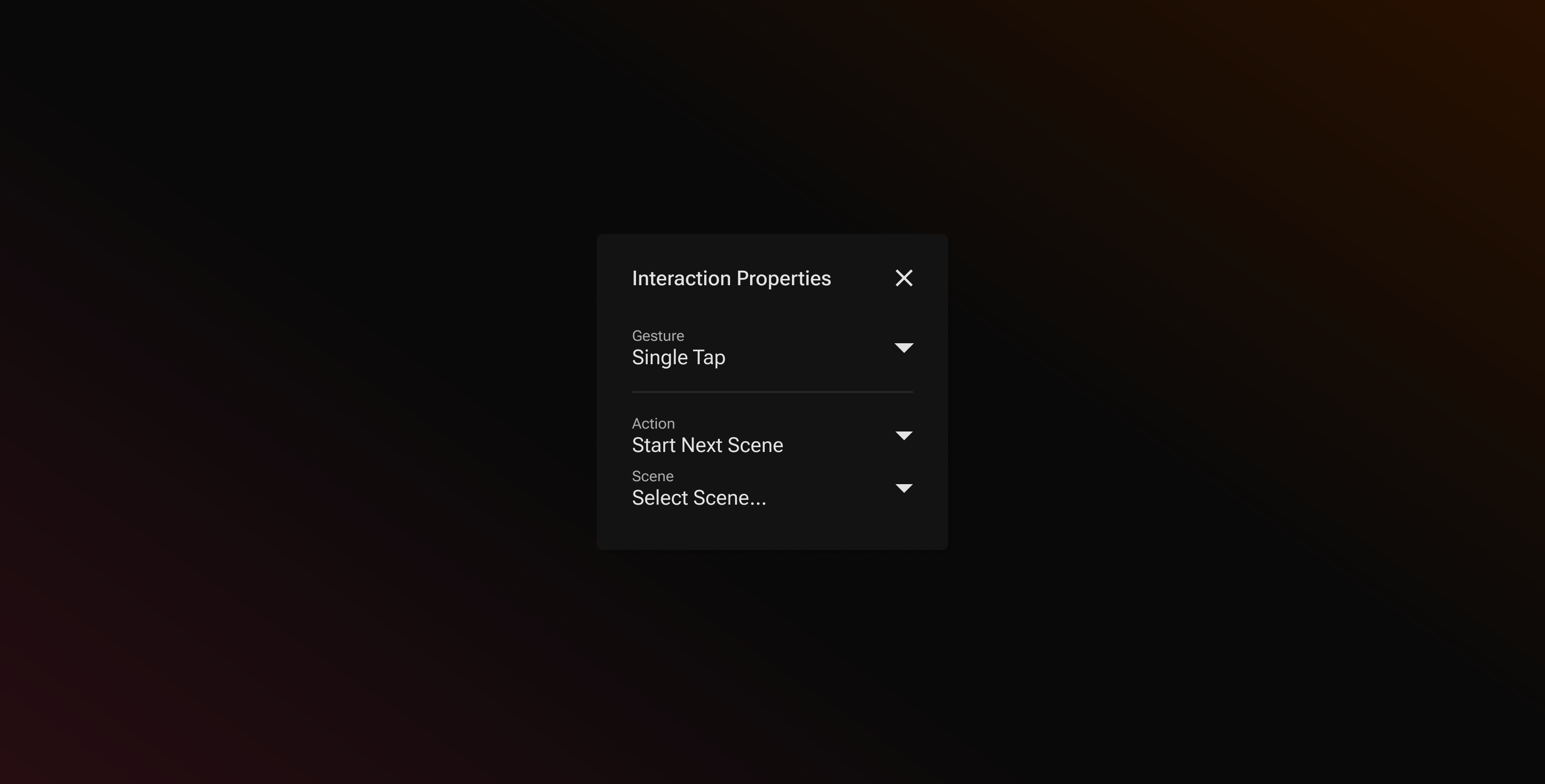
The **Start Next Scene** action moves the playable to another scene. It is the core of scene navigation: a tap on a start button, a video finishing, a score threshold being reached.
This is useful for patterns like:
* A **Play** button on an intro scene that starts the gameplay scene
* Sending users to an end card when a video or game finishes
* Branching to a win or lose scene from a [Conditional](/play/settings/progression/conditionals.md)
### How it Works
When you select **Start Next Scene** as an action, PLAY shows a single **Scene** dropdown. Pick the scene the playable should move to.
The dropdown lists every scene in the project except the current scene. If the project has only one scene, the dropdown is disabled.
When the action fires:
1. Any layer exit [animations](/play/properties/animations.md) set to play when the scene finishes run first.
2. The target scene loads and starts from the beginning.
{% hint style="info" %}
If the action fires again before the transition finishes, the newest one wins. Rapid repeat taps never stack scene changes.
{% endhint %}
If the target scene is later deleted, the dropdown reads **\[Scene Deleted]** and the action does nothing when it fires. Pick a new scene or remove the action.
### Where You Can Use It
**Start Next Scene** is available in every action dropdown, including:
* [Interactions](/play/properties/interactions.md)
* Layer **On Finish**
* Scene **On finish** and [Scene Events](/play/layers/scenes/scene-events.md)
* [Global Timer](/play/settings/global-timer.md)
* Progression [Triggers](/play/settings/progression/triggers.md) and [Conditionals](/play/settings/progression/conditionals.md)
### Setting Up Start Next Scene
{% stepper %}
{% step %}
### Open any action dropdown menu.
{% endstep %}
{% step %}
### Select **Start Next Scene.**
{% endstep %}
{% step %}
### In the **Scene** dropdown, choose the destination scene.
{% endstep %}
{% step %}
### Save your setup as usual.
{% endstep %}
{% endstepper %}
{% hint style="warning" %}
Progression variables keep their values when the scene changes. Reset them with [Update Progression](/play/general/actions/update-progression.md) if a new scene should start from zero.
{% endhint %}
---
# Agent Instructions
This documentation is published with GitBook. GitBook is the documentation platform designed so that both humans and AI agents can read, navigate, and reason over technical content effectively. Learn more at gitbook.com.
## Querying This Documentation
If you need additional information that is not directly available in this page, you can query the documentation by asking a question.
Perform an HTTP GET request on the following URL with the `ask` and `goal` query parameters:
```
GET https://help.craftsmanplus.com/play/general/actions/start-next-scene.md?ask=&goal=
```
`ask` is the immediate question: it should be specific, self-contained, and written in natural language.
`goal` is what the user is ultimately trying to achieve, the reason they need the answer. Sharing it helps GitBook give you a better, more relevant answer. A goal is most helpful when it describes the outcome the user wants rather than restating the question. For example, with `ask=how do I create an API token`, a goal like `automate deployments from our CI pipeline` lets GitBook tailor the answer to that use case.
The response will contain a direct answer to the question and relevant excerpts and sources from the documentation.
Use this mechanism when the answer is not explicitly present in the current page, you need clarification or additional context, or you want to retrieve related documentation sections.